1 · Getting started in an hour
What you will have done: connected the outside services the engine needs, given your mailboxes a name you will recognise, and read the one screen that tells you when you are allowed to start sending.
Nothing here sends an email. This journey is about getting to the point where sending is possible.
Why there are four vendors and not one
Cold outbound needs four different jobs done, and no single company does all four well. The engine keeps them separate on purpose, so you can replace any one of them without touching the rest.
    flowchart TD
  A["Primeforge<br/>buys the domains"] --> B["Clayinbox<br/>supplies the mailboxes"]
  B --> C["Warmforge<br/>warms them up"]
  C --> D["Salesforge<br/>sends the sequence"]
  D --> E["Neutron<br/>decides who, what and when"]
  E -.->|"tells it what to send"| D
Read that bottom row carefully, because it is the whole design: the vendors are transport, and Neutron decides. A vendor never chooses who gets written to.
The walkthrough
1. Open Settings, then Revenue
Click the cog in the left rail, then Revenue along the top. You land on Integrations, which is the list of every outside service the engine can use.
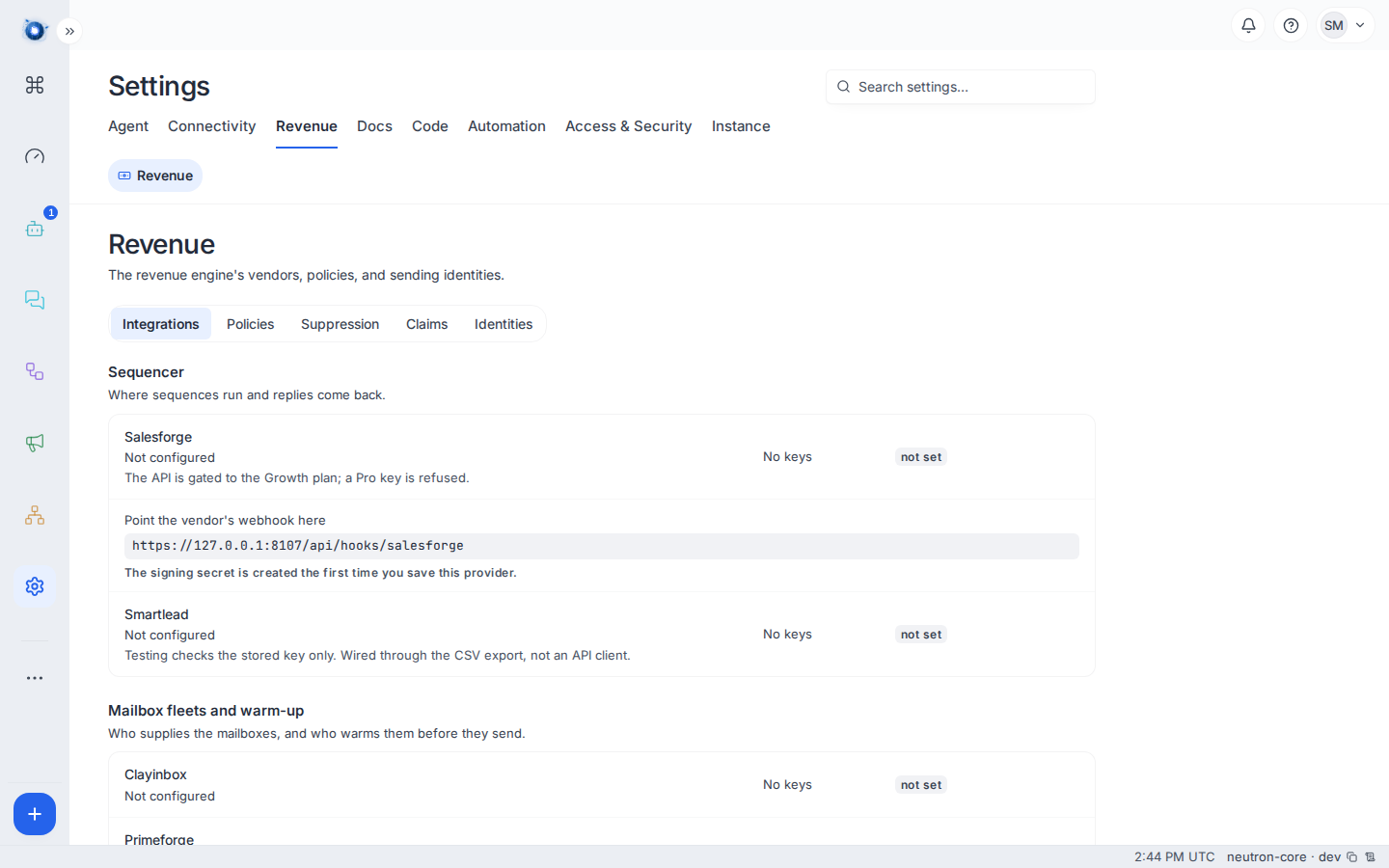
Each provider shows three things: whether it is configured, whether it has keys, and its price. A new instance reads Not configured · No keys · not set all the way down, exactly as in the picture.
2. Add the sequencer key
Salesforge is the sequencer — the service that actually puts letters on the wire and tells you when a reply arrives. Paste its API key and save.
Saving a sequencer for the first time creates a signing secret and shows you a webhook address. Copy that address into the vendor’s own settings, so it can tell you when something happens. Until you do, replies will not reach the Inbox.
3. Add the mailbox and warm-up keys
Under Mailbox fleets and warm-up, add keys for Clayinbox (who supplies the mailboxes), Primeforge (who supplies the domains) and Warmforge (who warms them). Each has a Test button.
Test means one thing only: the key works and the vendor answered. It does not mean a mailbox exists, it is warm, or you may send. Those are later, and separate.
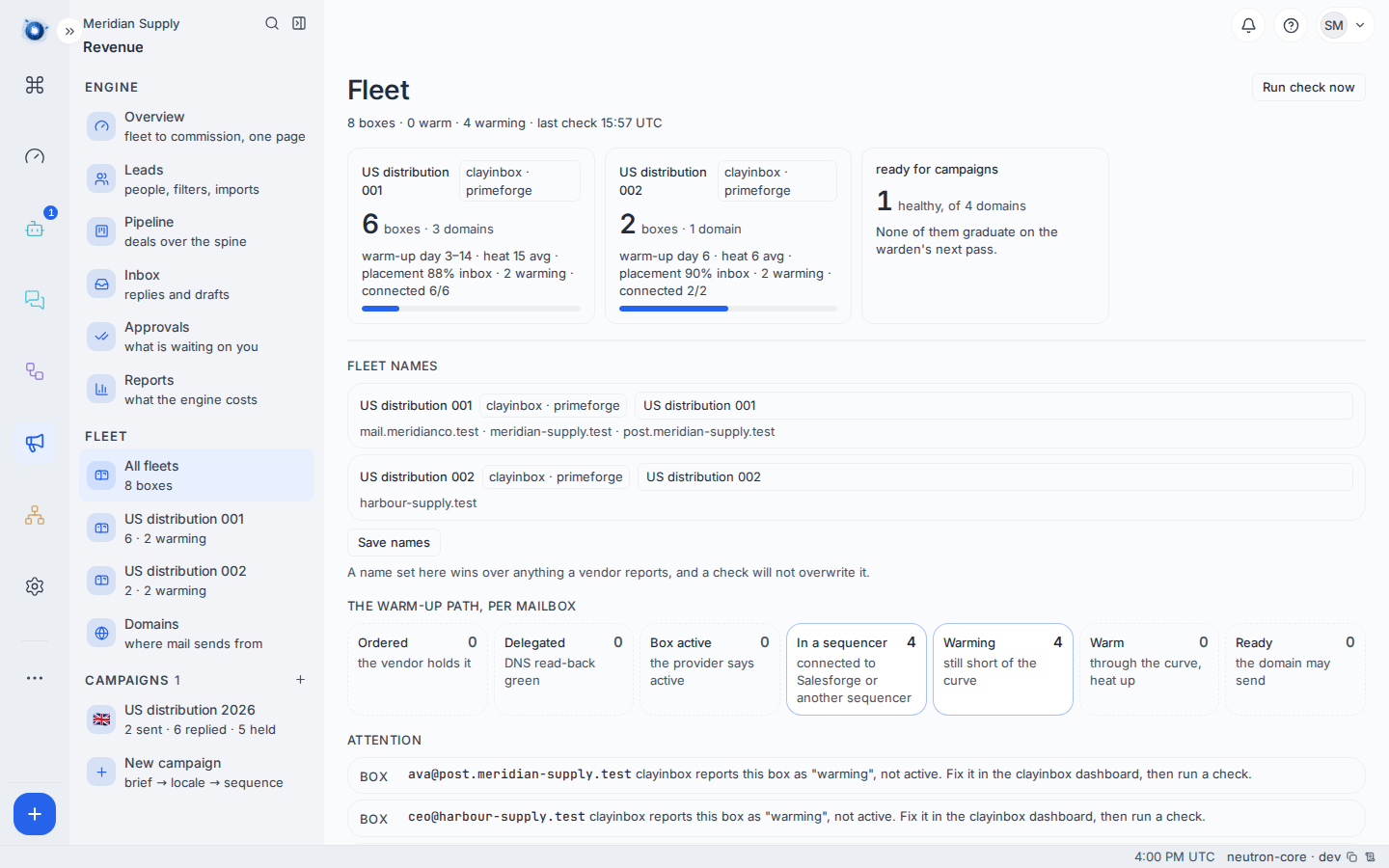
4. Name your fleets
A fleet is a batch of mailboxes bought together. Vendors name them things like fleet_8812, which tells you nothing at three in the morning.
Open Revenue › Fleet and give each one a name you would recognise — the campaign it serves, or the month you bought it.
5. Read the Domains screen
Revenue › Domains is the screen that decides whether anything can send at all.
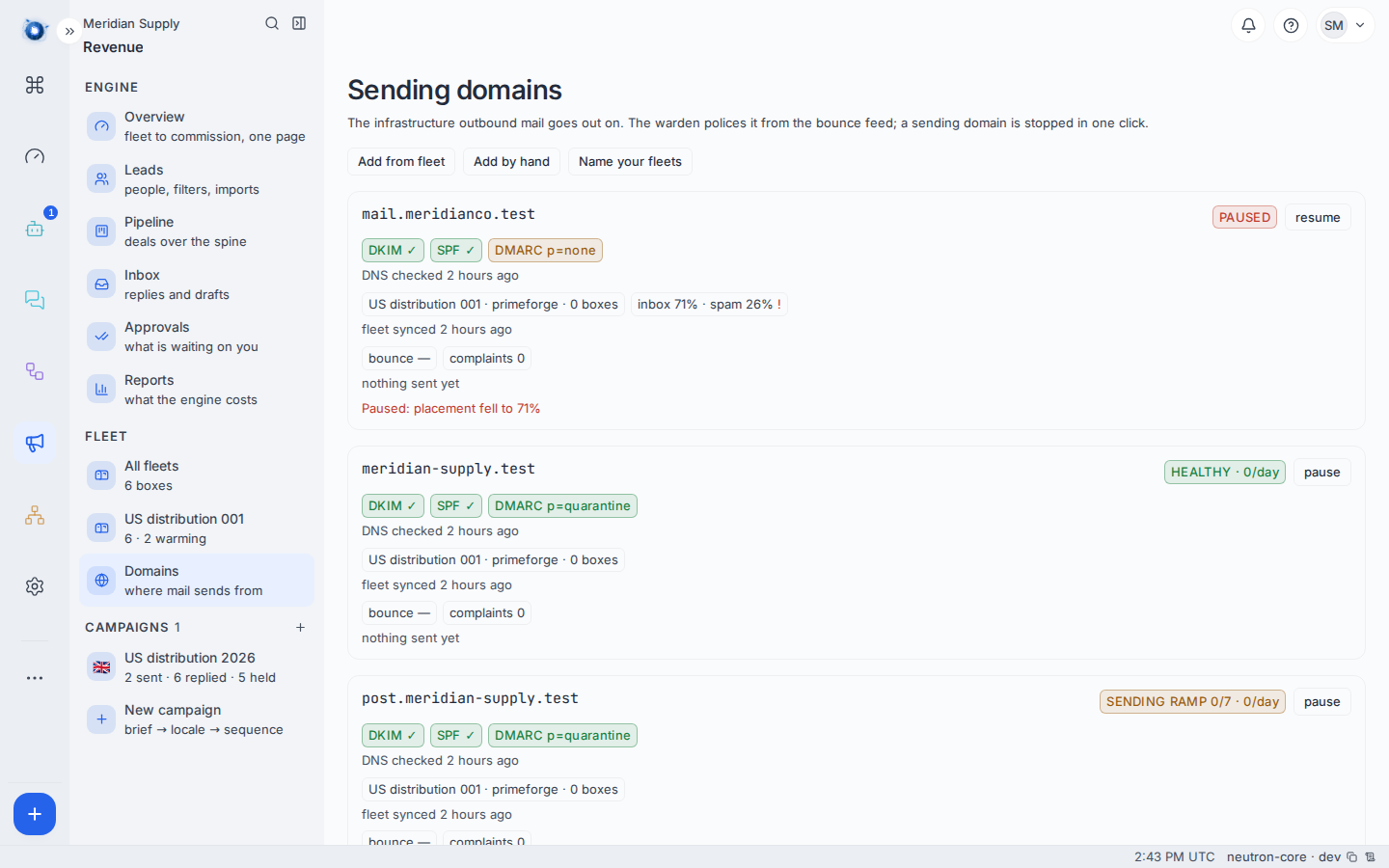
A domain sits in one of four states.
| State | What it means |
|---|---|
| Warming | Bought and being warmed. It may not send campaign mail yet. |
| Healthy | Warm, proven, and allowed to send. |
| Paused | Something went wrong. Nothing sends from it until it comes back. |
| Retired | Finished with. Kept for the record. |
6. Understand “warm-up day 3 of 14”
A brand-new domain that sends a hundred cold letters goes straight to spam and stays there. Warming means sending a small, growing trickle of mail that gets opened and replied to, until the receiving world believes a person is behind it.
Day 3 of 14 means you have eleven days to wait. There is no way to shorten it that does not cost you the domain. Use the time for journeys 2 and 3: build the campaign and the list, so the day the domain turns healthy there is something ready to send.
A worked example
Meridian Supply is a British firm that places leather and knitwear makers with United States distributors. On their first morning:
- They add all four keys. Every Test comes back green.
- They rename
fleet_8812to US distribution 001. - Domains shows
meridian-supply.testhealthy,post.meridian-supply.testwarming, andmail.meridianco.testpaused. - They can send from one domain today, a second in eleven days, and none at all from the third.
That is a real, useful first hour. Nobody has been written to.
What to do if
A Test button comes back red. Almost always the key was pasted with a trailing space, or it belongs to a plan without API access. Re-copy the key. If it still fails, the vendor’s own dashboard will say whether the key is live.
Every domain says “warming” and you need to send today. You cannot. A domain that sends cold mail before it is warm is a domain you have spent money on and burned. Ask whoever bought the domains whether an already-warm one exists.
The Fleet screen says “never checked”. The keys are in but nothing has read the vendor yet. It fills in on the next daily check. If it is still empty tomorrow, see journey 12.
A domain is paused and you did not pause it. Something automatic did, and it had a reason. Journey 8 explains how to find the reason and what brings it back.
Confirm it worked: open Revenue › Domains and see at least one domain reading healthy. That is the sentence that means you can send.