7 · Milestones and the timeline
What you will have done: put a fixed date on the calendar, given some work a start and an end, and read the picture that shows what has to happen before what.
Two different kinds of date
A due date on an item says when that piece of work should be finished. A milestone is not a piece of work at all: it is a date the business cares about, with a name. “Keys to Unit 7.” “First pallet ships.” Nothing hangs under a milestone, and a milestone without a date is refused, because the date is the whole of it.
The timeline draws both. Milestones sit in their own strip along the top, above every group, so a busy project can never push its own deadlines off the picture.
The walkthrough
1. Add a milestone
New item, kind Milestone, and give it a due date. It will not save without one.
2. Give the work dates
Open an item and fill in Due, and a start date if the work has a run rather than a deadline. Both are optional. An item with only one of them is drawn as a point on that day, not as a bar stretched to the edge of the screen, because the other end is genuinely unknown.
3. Open the Timeline
The screen opens on ten weeks: the two behind you and the eight ahead, snapped to whole weeks. Today is a vertical line.
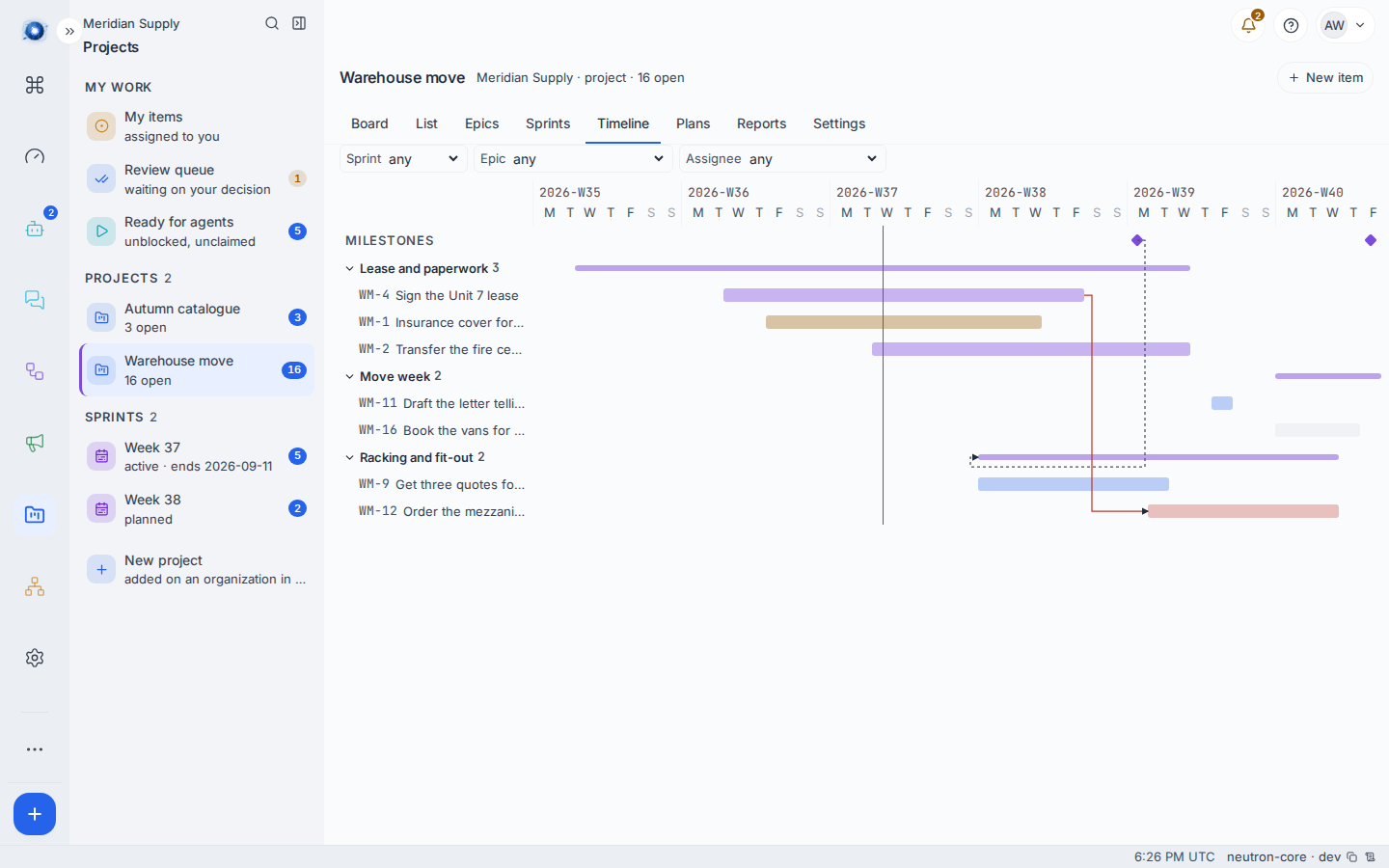
Work is grouped by epic. The epic’s own dates are drawn on its header row. Click the chevron to fold a group away.
4. Read the arrows
An arrow is drawn between two items when one has to happen before the other:
| Link | What it means | How it is drawn |
|---|---|---|
| blocks | The second cannot start until the first is done. Enforced: the board refuses the move. | A solid arrow |
| precedes | The second follows the first. An order, not a rule. Nothing is enforced. | A dashed arrow |
An arrow needs both ends on the screen. If one end is folded away, filtered out, or outside the ten weeks, no arrow is drawn.
5. Drag a date
Drag the middle of a bar and both dates move together, keeping its length. Drag either end and only that end moves. An end dragged past the other end does nothing rather than turning the bar inside out.
Every drop writes one change to the item, carrying the version the screen was drawn from, so two people dragging the same bar cannot both win.
6. Narrow it
Sprint, Epic and Assignee at the top narrow what is drawn. They filter the picture, not the window: the ten weeks stay the ten weeks.
A worked example
Meridian Supply’s move has two dates that cannot slip.
- Priya adds two milestones: Keys to Unit 7 on 21 September, and First pallet ships from Unit 7 on 2 October. Both appear as diamonds along the top.
- She gives the lease a run from 2 to 18 September, and the racking quotes from 14 to 22 September.
- She links Order the mezzanine handrail as blocked by Sign the Unit 7 lease, and a solid arrow appears between them. The supplier needs eight weeks and will not take the order without a signed lease, which is now on the picture rather than in her head.
- The quotes slip by three days. She drags the bar and both its dates move; the arrow follows.
What can go wrong
| The sentence on screen | What happened, and what to do |
|---|---|
| Nothing here carries a date yet. Give an item a start or a due date, or add a milestone, and it appears on this timeline. | The project has dates on nothing. Add one and the screen fills in. |
| a milestone must carry dueAt | You tried to save a milestone with no date. A milestone is its date. |
| This project has more dated items than one timeline draws. Narrow the window to see the rest. | The project is larger than one timeline page. Use the Epic, Sprint and Assignee filters to cut it down. |
| Someone changed this first — reloaded | Somebody moved the same bar. The screen has caught up; drag again if you still mean to. |
| An arrow you expected is not drawn | Both ends have to be on screen. Unfold the group, clear the filter, or check that both items carry dates inside the window. |
| Two items look linked but nothing stops the second starting | The link is precedes, which is an order rather than a rule. Use blocks if it should actually stop the work. |
Confirm it worked: the milestone appears as a diamond in the top strip on the day you gave it, and each item you dated has a bar that starts and ends where you said.